

What's a skill?
The SKILL.md format and frontmatter fields.
Get skills in
Auto-discovery from disk, SDK sync, or platform-first authoring.
Routing & sync
Smart routing, bidirectional sync, skill-specific evaluators.
Registry
Publish to the public registry with SkillScore effectiveness.
Agents
Per-agent skill assignment, dashboard, manifest tracking.
Playground
Test skill edits against real production traces before saving.
Benchmark (eval.yaml)
A/B benchmark the skill via the open
skillevaluation spec.What Is a Skill?
A skill is a directory containing aSKILL.md file and optional supporting files:
SKILL.md and follows the instructions.
Skills are not tools. Tools are functions the agent can call (search, calculate, etc.). Skills are instructions that tell the agent how to approach a task — they’re composable behavior units.
SKILL.md Format
Every skill has YAML frontmatter and a markdown body:On-demand skills cost zero context until called. A skill with
invocation: user is excluded from the ambient skill menu and smart routing — it never occupies your agent’s context until you explicitly invoke it (e.g. router.get_skill_body(name)). Claude Code’s disable-model-invocation: true means the same thing; DecimalAI round-trips both spellings on import and export.Getting Skills Into DecimalAI
There are two separate questions, and it helps to keep them apart:- How does a skill get into your workspace? Three sources, covered below: auto-discovery from disk, install from the public registry, or manual creation.
- How does a skill reach a running agent? Once it’s in your workspace, pick one delivery path per runtime: hosted routing via the Skill Router (your SDK agent asks the platform which skills to load on each query — this is the path that measures effectiveness and powers the leaderboard) or disk export (DecimalAI writes the open-format
SKILL.mdinto the directories Claude Code / Cursor / etc. already scan, and the runtime loads it itself).
1. Auto-Discovery (Bring Your Own)
If you already have SKILL.md files, DecimalAI discovers them automatically:The adapter entry point was called
install() in 0.10.0 and earlier. It
was renamed to instrument() in 0.10.2 — same arguments, same
behaviour — because install had come to mean something else entirely:
adding a skill to your workspace. install() still works and emits a
DeprecationWarning. See Vocabulary.SkillRouter.install() below is that other meaning, and keeps its name.
Personal/global directories (
~/.claude/skills/, ~/.agents/skills/, …) are not scanned by default — pass include_global=True (to discover_skills() or the sync entry points) to opt in. The default is off so a sync run from a project without local skills can’t accidentally upload your personal skills into the org registry.
2. From the Public Registry
Browse published registry skills and install them:SKILL.md + attachments to disk, and creates a lockfile at .decimal/skills.lock.
3. Manual Creation
Create skills directly via the SDK or API:How Skills Are Tracked
Auto-Versioning
Every time you edit a SKILL.md and restart your app, the SDK:- Re-discovers the file
- Computes a content hash
- If the hash changed → creates a new version automatically
The usage ladder
Three rungs, and they are not interchangeable:
Comparing the rendered prompt against known skill bodies tells you the skill was put in front of the model. It cannot tell you the model reached for it, so prompt matching feeds the offered and delivered rungs — never activated.
That matters because a fabricated activation is indistinguishable downstream from a real one: it becomes a skill-activation row, it feeds the activation rate, and it is blended back into ranking, so a skill that was merely pasted into a prompt gets promoted over one that was actually used. Where there is no selection event to observe,
active_skills is honestly empty rather than filled with a guess.
load_skill("code-review") — which is what puts code-review on the activated rung.
Note where that lands: the selection event fills skills_loaded_by_agent, and active_skills stays empty. The two are merged into one activation set on arrival, so a load_skill call counts as an activation without the SDK writing active_skills at all. That field carries only what a caller declares explicitly, through log_skill_activation() or a decimal.active_skills span attribute. Had the model never called load_skill, skills_loaded_by_agent would be [] and skills_delivered would still be ["code-review"].
On a prompt-injection rail — Claude Code, Cursor and other harnesses that read
SKILL.md from disk and inject it themselves — there is no selection event for the SDK to see, so activation is not measurable and active_skills stays empty by design. skills_delivered is the strongest honest rung there. Traces arriving with no active skills on such a rail are correct, not broken.Effectiveness Scoring
The platform correlates skill activations with trace evals to compute:- Pass rate: % of traces with the skill that evaluated as “pass”
- Effectiveness: The skill’s SkillScore — a 0–100 composite from benchmark lift (the with-vs-without improvement), live eval pass rates, AI-judge quality, and cross-org adoption
- Trend: Improvement or regression over time
How each rung is detected internally
How each rung is detected internally
Activated — two channels, both direct declarations, never inferred:
- Model-initiated selection — the model calls
load_skill("code-review")and the router serves the body. This is the only channel that observes the model choosing. - Explicit declaration —
trace.log_skill_activation(name="code-review"), or adecimal.active_skillsspan attribute on OTel frameworks. You are asserting it; the SDK records what you assert.
[code-review], ## Skill: code-review) is what a menu row looks like, so it means offered; fuzzy body-content overlap means the body itself was there, so it means delivered.Prompt matching runs on the generic tracer, LangChain, OpenAI Agents and OTel — not on every framework. It reads system and developer messages only, so it structurally cannot see an assistant message or a tool result, which is precisely why it can never produce an activation.Precedence. Prompt matching is a fallback, not a second opinion. Any skill the router already accounted for on that run is excluded from it — an observation is never overwritten by a guess, and a skill the router merely offered is never promoted to delivered by prompt text belonging to a same-named skill on disk.Skill Routing
When your agent needs to select which skills to load, DecimalAI offers two routing strategies:Menu Injection (Simple)
Dump all skill names + descriptions into the system prompt and let the LLM decide:Smart Routing (Semantic)
For larger skill sets, smart routing uses semantic search + performance-weighted re-ranking:get_menu_prompt(query=...) returns just the ready-to-inject prompt string. If you want the ranked skills plus the fragment together, call router.smart_route(query=...) — same semantic + effectiveness ranking, but it returns the full result dict (skills, prompt_fragment, strategy). The pricing page and Skill Router reference use smart_route(); both are real.Progressive Disclosure (Bodies on Demand)
Both strategies above surface skill descriptions — a one-line menu row per skill. The full instructions (theSKILL.md body) load on demand: on the openai_agents and pydantic_ai adapters, enabling the skill loader auto-registers a load_skill(name) tool on every agent. The model reads the menu, decides a skill applies, calls load_skill("skill-name"), and the body arrives as a tool result — then it executes with the full instructions in context.
Descriptions stay cheap (budgeted at ~1,500 estimated tokens / 30 rows) and bodies are budgeted too (at most 3 per turn, ~6,000 tokens total, 8 KB per body), so a growing registry can’t blow the context window. Adapters without a tool loop (anthropic, langchain, adk) deliver bodies by prompt injection instead — on by default once the loader is enabled (0.12.0+), inject_skill_body=False to opt out — with the same trim and budget.
The routing menu only offers skills the calling user may see:
personal skills surface only to their creator and workspace skills only to members of the owning workspace (plus explicit shares); org and public skills surface org-wide. API-key-authenticated agents see the org-wide set.Bidirectional Sync
Skills sync automatically between your local files and the platform:Community Registry
Browse, install, fork, and publish skills in the public registry. The full lifecycle — discover, install, receive upstream updates, publish your own — is covered in its own guide:Community Registry guide
Browse without signing up · install in one call · receive upstream
updates · publish your own with effectiveness data attached.
Agent Skill Assignment
Once a skill is in your organization (created manually, or adopted from the registry with Install or Fork a copy), it is offered to every agent in the workspace by default. Assigning it to an agent adds an explicit row for that agent and lets you pin the version that agent gets; on its own it does not take the skill away from any other agent. To have the router offer a skill only to the agents it is assigned to, set Offered to → Only agents it’s assigned to on the skill’s Settings tab, orPUT /api/v1/skills/{skill_id} with {"offer_scope": "restricted"}. The default, "workspace", keeps it on every agent’s menu.
Assigning from the Skill Settings Tab
Navigate to any skill detail page → Settings tab → Agent Assignments section:- Select an agent from the dropdown and click “Assign”
- Remove an assignment by clicking the “Remove” button next to an assigned agent
- Each assignment shows the version mode: Latest (auto-updates) or Pinned (locked to a specific version)
Assigning from the Agent Skills Tab
Navigate to any agent → Skills tab:- Click ”+ Add Skill” in the table header → a picker modal shows all org skills not yet assigned
- Search, multi-select, and click “Assign” to batch-assign skills
- Click “Browse Registry →” to discover and install new skills from the public registry
How Assignment Works at Runtime
When an agent runs, the Skill Router resolves the skills offered to that agent: every skill offered to all agents, plus any skill set to only assigned agents that this agent is assigned:Agent Skills Dashboard
The Skills tab on each agent’s dashboard provides full observability into how skills perform for that specific agent.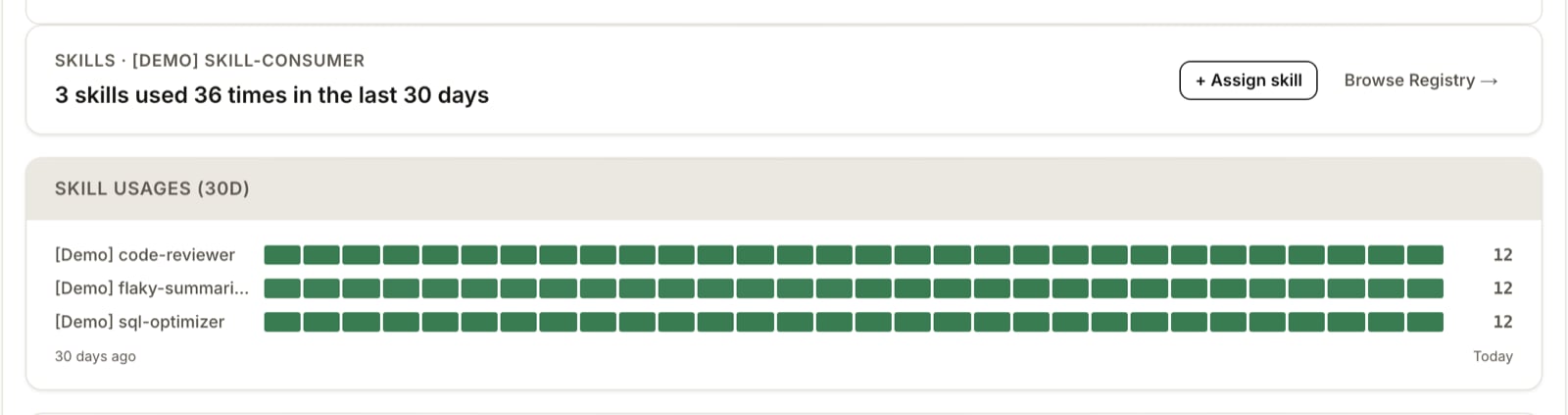
The agent's Skills surface: a one-line usage summary above the 30-day activation heatmap.
The usage summary
One sentence at the top, not a row of stat cards:Skills Used card sitting next to a Total Activations card used to make readers work out for
themselves.
The pass-rate trailer is conditional. It appears only when enough evaluated activations exist to
mean something; below that floor the sentence simply ends after the activation count rather than
quoting a rate computed from one or two evals. If no skill has fired yet, the line says so directly.
Activation Timeline (30d Heatmap)
A GitHub-style heatmap grid showing daily activation intensity for each skill over the last 30 days:- Rows = skills (top 6 by effectiveness)
- Columns = days (30 cells, left = 30 days ago, right = today)
- Color intensity = activation volume (darker green = more activations)
- Hover = exact date, activation count, and pass rate
- Which skills are used most frequently
- Whether a skill’s usage is increasing or declining
- Days with unusually high or low activity
Skill Insights
Auto-generated insight cards based on the data:- 🏆 Top Skill — The skill with the highest SkillScore, shown with its pass rate and usage count
- 📈 Improving — Skills whose pass rate is trending upward over the last 15 days
- ⚠️ Degrading — Skills whose pass rate is declining, with a suggestion to review the latest version
Leaderboard Table
All skills ranked by effectiveness with columns:Skills and Manifests
Skills are tracked as askill_registry surface in your agent’s version manifest. When the skill registry changes, a new manifest version is registered:
Skill changes follow the same compatibility policy as other surfaces (keep/repair/replay/drop). See Manifests & Versioning for details.
Testing Skill Changes in the Playground
Before saving a skill edit, test it against real production traces in the Playground — open a skill detail page, click “Test in Playground”, edit the body, and run it side-by-side against the original output. See the Playground guide for the full procedure.Writing Effective Skills
The five tips that matter most:- Only teach what the model can’t infer. Skills lift when they supply knowledge the model doesn’t have — your house conventions, a spec’s exact rules, a new API. Generic advice (“write clean code”, “be thorough”) measures zero lift.
- Write the description as the trigger. State what the skill does and when to use it, in third person, with one “Do NOT use for …” clause. Both search retrieval and the model’s skill menu read this one string — it decides whether the skill ever fires.
- Directives, not essays. “Always use
client.interactions.create()for chat. Never usegenerate_content(it drops session state)” beats a paragraph of background. One worked before→after example beats five paragraphs. - If a program can check it, make it a validator; if exact steps are required, write a script. Put deterministic checks in your eval’s
validators, and fragile step-by-step operations inscripts/— code is exact, prose pretending to be code is not. - Every line costs tokens on every activation. Apply the no-op test: remove the line — does output change? No → delete it. Shed real depth into
references/instead of bloating the body.
Authoring Skills — the full guide
Classify your skill on two axes (capability / preference, public / private), write the description as the trigger, build an honest eval suite with trigger cases, and know when the skill should retire.
Next Steps
Skills Observability tutorial
See per-skill activation counts, pass rates, and smart routing in action.
Skills API
REST reference for create, sync, fork, publish, version diff.
Skills & Data Pipeline
Conceptual model — skills vs tools, activation tracking, effectiveness.
Public registry
Browse published skills ranked by SkillScore — measured quality from live activations, not install counts.